






With Pearl Bids, you can print a description of each item on each table and collect these pages together for a catalog.
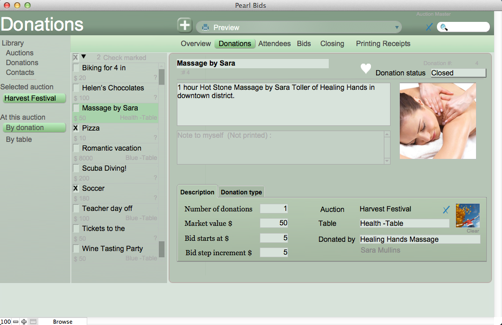
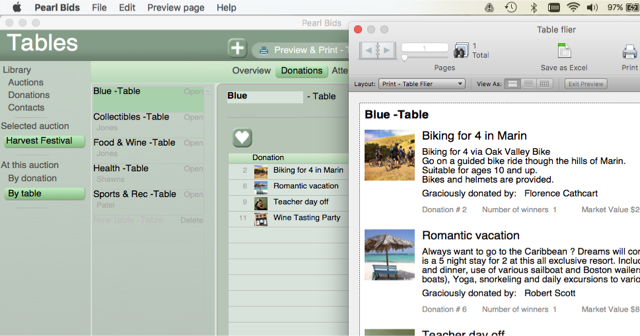
1. In your Pearl Bids program, have the auction selected in the left hand column and Donations chosen in the menu bar under the heading.
2. In the left hand column, you will then select By Table under the At this auction category.
3. Select the each of the tables at the from the center column.
4. In the top “printer bar,” select Preview & Print - Table flier

This will provide you with pages for your catalog.
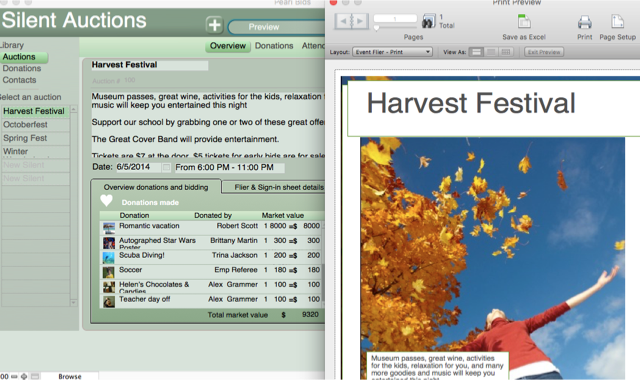
5. In order to print a cover sheet for your catalog, choose Overview from the menu bar under the heading.
6. You can select to preview and print a flyer for your auction.